
Ryujinx Emulator Troubleshooting

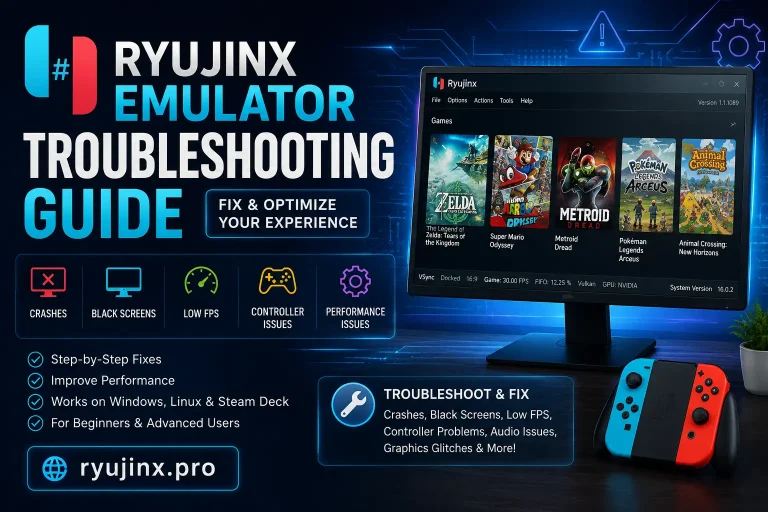
Ryujinx Emulator Troubleshooting helps you fix common issues like crashes, black screens, low FPS, controller problems, graphics glitches, and startup errors. Follow simple, effective solutions to improve stability, boost performance, and enjoy smoother Nintendo Switch emulation on your PC with the latest troubleshooting tips.
If you are experiencing problems while using the Ryujinx emulator, you are not alone. Many users encounter issues such as crashes, black screens, low FPS, controller detection errors, audio glitches, or games failing to launch. The good news is that most of these problems can be fixed with a few simple troubleshooting steps.
This Ryujinx Emulator Troubleshooting Guide covers the most common issues and provides practical solutions to help you get your games running smoothly. Whether you are a beginner or an experienced user, these tips will improve stability, performance, and your overall gaming experience.
Check Your System Requirements
Before troubleshooting any issue, make sure your computer meets the emulator’s requirements. Running Ryujinx on unsupported hardware may result in poor performance or frequent crashes.
Minimum Requirements
- Windows 10/11 (64-bit), Linux, or macOS
- 8 GB RAM
- Modern Intel or AMD processor
- Graphics card with Vulkan or OpenGL support
Recommended Requirements
- Windows 11 (64-bit)
- 16 GB RAM or higher
- Intel Core i5/i7 or AMD Ryzen 5/7
- NVIDIA GTX 1660 or newer, AMD Radeon RX series, or Intel Arc GPU
- SSD for faster loading times
Updating your operating system and graphics drivers can also resolve many compatibility problems.
Ryujinx Won’t Launch
One of the most common issues is the emulator refusing to open.
Possible Causes
- Missing files
- Outdated graphics drivers
- Corrupted installation
- Antivirus blocking the emulator
How to Fix It
- Restart your computer.
- Download the latest version of Ryujinx.
- Update your GPU drivers.
- Run Ryujinx as Administrator.
- Add the emulator folder to your antivirus whitelist.
If the emulator still refuses to launch, reinstall it completely.
Black Screen While Playing Games
Some games load but display only a black screen.
Solutions
- Verify that your firmware is installed correctly.
- Check that your game files are not corrupted.
- Switch between Vulkan and OpenGL graphics backends.
- Update your graphics drivers.
- Restart the emulator after changing settings.
Game Crashes on Startup
If games crash immediately after launching, the problem is usually related to outdated firmware or incompatible game files.
Fixes
- Install the latest firmware.
- Verify that your game dump is complete.
- Disable experimental graphics options.
- Clear the shader cache.
- Restart the emulator after making changes.
Low FPS and Lag
Sometimes sound may stutter, crackle, or disappear completely.
Improve Performance
- Close unnecessary background applications.
- Use Vulkan if it performs better on your hardware.
- Enable shader cache.
- Keep Windows updated.
- Install the latest graphics drivers.
- Lower internal resolution if supported.
- Store game files on an SSD.
These changes can significantly improve gameplay.
Audio Problems
Sometimes sound may stutter, crackle, or disappear completely.
Try These Fixes
- Restart the emulator.
- Select the correct audio output device.
- Update your sound drivers.
- Close other applications using the audio device.
- Reduce CPU usage by closing unnecessary programs.
Controller Not Detected
If your controller is not working:
- Reconnect the controller.
- Restart Ryujinx.
- Select the correct input device in settings.
- Update controller drivers.
- Test the controller in another game to confirm it works properly.
Graphics Glitches
Visual bugs can occur because of incompatible graphics settings.
Fix Graphics Issues
- Update GPU drivers.
- Switch graphics backend.
- Disable unsupported enhancements.
- Clear shader cache.
- Restart the emulator after applying changes.
Shader Stuttering
Shader compilation often causes temporary stuttering during gameplay.
Reduce Stuttering
- Let shaders compile naturally.
- Keep shader cache enabled.
- Use an SSD.
- Avoid deleting shader cache unless necessary.
Performance usually improves after playing for a while.
Firmware Errors
Firmware-related errors are common when using outdated firmware.
Fix Firmware Problems
- Install a compatible firmware version.
- Remove corrupted firmware files.
- Restart the emulator.
- Verify firmware installation before launching games.
Save Data Issues
If your saved games disappear or fail to load:
- Back up save files regularly.
- Avoid deleting the save folder.
- Check file permissions.
- Restore backups if files become corrupted.
General Performance Tips
For the best experience:
- Always use the latest Ryujinx version.
- Keep Windows updated.
- Update graphics drivers regularly.
- Close background applications.
- Use an SSD.
- Enable shader cache.
- Keep enough free RAM available.
- Avoid unnecessary graphics enhancements.
These simple steps can greatly improve emulator stability.
FAQs
Conclusion
This Ryujinx Emulator Troubleshooting Guide covers the most common problems users face, including crashes, black screens, low FPS, graphics glitches, controller issues, audio errors, and firmware problems. In most cases, updating drivers, installing compatible firmware, verifying game files, and adjusting emulator settings will solve the issue. By following these troubleshooting tips, you can enjoy a smoother and more stable Nintendo Switch emulation experience.